This time something about JavaScript. Everybody likes JavaScript :P.
I’d like to write quick guide how to set up working tests environment.
First, what we need:
Let get all required things by NPM. Create a package.json with content:
{
  "name": "tests",
  "description": "tests",
  "dependencies": {
    "karma-jasmine": "*",
    "karma-cli": "*",
    "karma-requirejs": "*",
    "karma-phantomjs-launcher": "*"
  }
}
Now run the command:
npm install
Great. We have now all required dependencies.
Next thing is to configure Karma. There are two ways of doing this, manually by creating a karma config file or using karma creator (karma init command). I prefer doing it manually. Create a new file and name it karma.conf.js. Here’s my file with comments:
module.exports = function ( config ) {
    config.set( {

        // base path that will be used to resolve all patterns (eg. files, exclude)
        basePath: '.',

        // frameworks to use
        frameworks: [ 'jasmine', 'requirejs' ],

        // list of files / patterns to load in the browser
        files: [
            'tests/main.js', // this is a main file which is booting up our test
            { pattern: 'tests/**/*.js', included: false }, // this is where are your specs, please do not include them!
            { pattern: 'src/**/*.js', included: false } // this is where are your source files, please do not include them!
        ],

        // list of files to exclude
        exclude: [],

        // test results reporter to use
        // possible values: 'dots', 'progress'
        // available reporters: https://npmjs.org/browse/keyword/karma-reporter
        reporters: [ 'progress' ],

        // web server port
        port: 9876,

        // enable / disable colors in the output (reporters and logs)
        colors: true,

        // level of logging
        // possible values: config.LOG_DISABLE || config.LOG_ERROR || config.LOG_WARN || config.LOG_INFO ||
        // config.LOG_DEBUG
        logLevel: config.LOG_INFO,

        // enable / disable watching file and executing tests whenever any file changes
        autoWatch: true,

        // start these browsers
        // available browser launchers: https://npmjs.org/browse/keyword/karma-launcher
        browsers: [ 'PhantomJS' ],

        // set this to true when your want do to a single run, usefull to CI
        singleRun: false
    } )
};
Basically what you need to change is basePath and files / exclude. But that’s not all. We need to create another file which will run asynchronous our test with RequireJS. Let’s place this file in the tests and name it main.js. This is the only file which is included by karma. Content of the file:
// RequireJS deps
var deps = [];

// Get a list of all the test files to include
Object.keys( window.__karma__.files ).forEach( function ( file ) {
    if ( /(spec|test)\.js$/i.test( file ) ) {
        deps.push( file );
    }
} );

require.config( {
    // Karma serves files under /base, which is the basePath from your config file
    baseUrl: '/base/src',

    // dynamically load all test files
    deps: deps,

    // we have to kickoff jasmine, as it is asynchronous
    callback: window.__karma__.start
} );
Variable window.__karma__.files comes from karma.conf.js files section. We need to filter them as we want to require only tests files. The source files will be declared as dependencies of each test file.
Let’s create a example test file tests/exampleSpec.js and put in it:
define( [ 'example' ], function ( example ) {
    "use strict";

    describe( 'example', function () {
        it( 'is defined', function () {
            expect( example ).not.toBe( undefined );
        } )
    } );
} );
We are defining a spec which has source file as a dependency. RequireJS injects it’s to our spec and we can now test it with Jasmine. How cool is that?
Let’s define our example via src/example.js:
define( function () {
    return {};
} );
The last thing which need to be done is to export the variable which will tell Karma where PhantomJS binary is:
export PHANTOMJS_BIN=./node_modules/.bin/phantomjs
Now let’s run Karma:
node ./node_modules/.bin/karma start karma.conf.js
Finally you should see something like this:
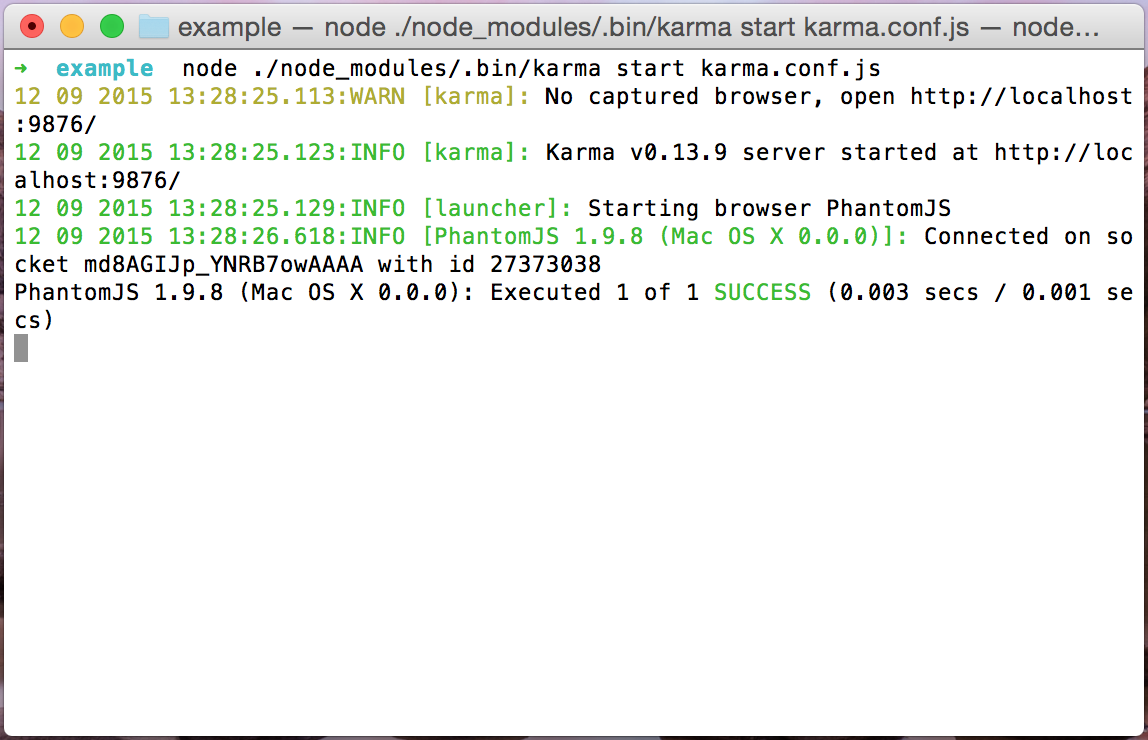
If you have any problems with PhantomJS – maybe you need to install some libs required by it. Check it’s website for more info. Other solution is to try different browser – Chrome, Firefox etc. But this can’t be done via SSH… 🙂
Any problems, suggestions, feel free to comment.