Blog šŸ“š

PhpStorm refactoring tutorial , part 1

PhpStorm like all JetBrains IDEs has o lot of built in features. And you can add even more with plugins. It provides many refactoring features.

This will be a first part of refactoring tutorial.

We will start from the simple things.

Lesson 1: Extracting a variable and renaming it.

Example code to be refactored:

'use strict';

$('#container').addClass('example');

$('#container').on('click', function () {
    alert('hello');
});

$('#container').remove();

This code is bad. If you use jQuery object more than once, assign it to variable.

First let’s extract variable. Move cursor toĀ anyĀ occurrence ofĀ $(‘#container’)Ā in the code and pressĀ ctrl+r. Menu will appear, now selectĀ Extract variable. IDE gives you ability to replaceĀ allĀ occurrencesĀ or just the highlighted one. We want to replace all of them. Choose it. Now we have ability to name the variable.Ā IDE suggest names by the code, in most cases it gives Ā correct name, but we can changeĀ it :).

Code after refactor:

'use strict';

var $container = $( '#container' );
$container.addClass('example');

$container.on('click', function () {
    alert('hello');
});

$container.remove();

Next thing. We have extracted the variable but later we decide that current name is not obvious. Naming is very important so we want to change it. Move cursor to any occurrence of variable $container and again press ⌘+r (on Mac) or ctrl+r (on other os). In the menu choose first position, Rename. Place a new name in the popup and do refactor.

'use strict';

var jQueryContainer = $( '#container' );
jQueryContainer.addClass('example');

jQueryContainer.on('click', function () {
    alert('hello');
});

jQueryContainer.remove();

You have ability to search the whole project forĀ occurrences of the variable name in the string / comment and text . Try it by yourself, it’s very handy :).

That’s all for today. See you in the next part.

Karma among with Jasmine, RequireJS and PhantomJS

This time something about JavaScript. Everybody likes JavaScript :P.

I’d like to write quick guide how to set up working tests environment.

First, what we need:

Let get all required things by NPM. Create aĀ package.jsonĀ with content:

{
  "name": "tests",
  "description": "tests",
  "dependencies": {
    "karma-jasmine": "*",
    "karma-cli": "*",
    "karma-requirejs": "*",
    "karma-phantomjs-launcher": "*"
  }
}

Now run the command:

npm install

Great. We have now all required dependencies.

Next thing is to configure Karma. There are two ways of doing this, manually by creating a karma config file or using karma creator (karma init command). I prefer doing it manually. Create a new file and name itĀ karma.conf.js. Here’s my file with comments:

module.exports = function ( config ) {
    config.set( {

        // base path that will be used to resolve all patterns (eg. files, exclude)
        basePath: '.',

        // frameworks to use
        frameworks: [ 'jasmine', 'requirejs' ],

        // list of files / patterns to load in the browser
        files: [
            'tests/main.js', // this is a main file which is booting up our test
            { pattern: 'tests/**/*.js', included: false }, // this is where are your specs, please do not include them!
            { pattern: 'src/**/*.js', included: false } // this is where are your source files, please do not include them!
        ],

        // list of files to exclude
        exclude: [],

        // test results reporter to use
        // possible values: 'dots', 'progress'
        // available reporters: https://npmjs.org/browse/keyword/karma-reporter
        reporters: [ 'progress' ],

        // web server port
        port: 9876,

        // enable / disable colors in the output (reporters and logs)
        colors: true,

        // level of logging
        // possible values: config.LOG_DISABLE || config.LOG_ERROR || config.LOG_WARN || config.LOG_INFO ||
        // config.LOG_DEBUG
        logLevel: config.LOG_INFO,

        // enable / disable watching file and executing tests whenever any file changes
        autoWatch: true,

        // start these browsers
        // available browser launchers: https://npmjs.org/browse/keyword/karma-launcher
        browsers: [ 'PhantomJS' ],

        // set this to true when your want do to a single run, usefull to CI
        singleRun: false
    } )
};

Basically what you need to change isĀ basePath andĀ files / exclude. But that’s not all. We need to create another file which will run asynchronousĀ our test withĀ RequireJS. Let’s place this file in theĀ testsĀ andĀ name itĀ main.js. This is the only file which is included by karma. Content of theĀ file:

// RequireJS deps
var deps = [];

// Get a list of all the test files to include
Object.keys( window.__karma__.files ).forEach( function ( file ) {
    if ( /(spec|test)\.js$/i.test( file ) ) {
        deps.push( file );
    }
} );

require.config( {
    // Karma serves files under /base, which is the basePath from your config file
    baseUrl: '/base/src',

    // dynamically load all test files
    deps: deps,

    // we have to kickoff jasmine, as it is asynchronous
    callback: window.__karma__.start
} );

VariableĀ window.__karma__.files comesĀ fromĀ karma.conf.jsĀ files section. We need to filter them as we want to require only tests files.Ā The source files will be declared asĀ dependencies of each test file.

Let’s create a example test fileĀ tests/exampleSpec.js and put in it:

define( [ 'example' ], function ( example ) {
    "use strict";

    describe( 'example', function () {
        it( 'is defined', function () {
            expect( example ).not.toBe( undefined );
        } )
    } );
} );

We are defining a spec which has source file as a dependency. RequireJS injects it’s to our spec and we can now test it with Jasmine. How cool is that?

Let’s define our example viaĀ src/example.js:

define( function () {
    return {};
} );

The last thing which need to be done is to export the variable which will tell Karma where PhantomJS binary is:

export PHANTOMJS_BIN=./node_modules/.bin/phantomjs

Now let’s run Karma:

node ./node_modules/.bin/karma start karma.conf.js

Finally you should see something like this:
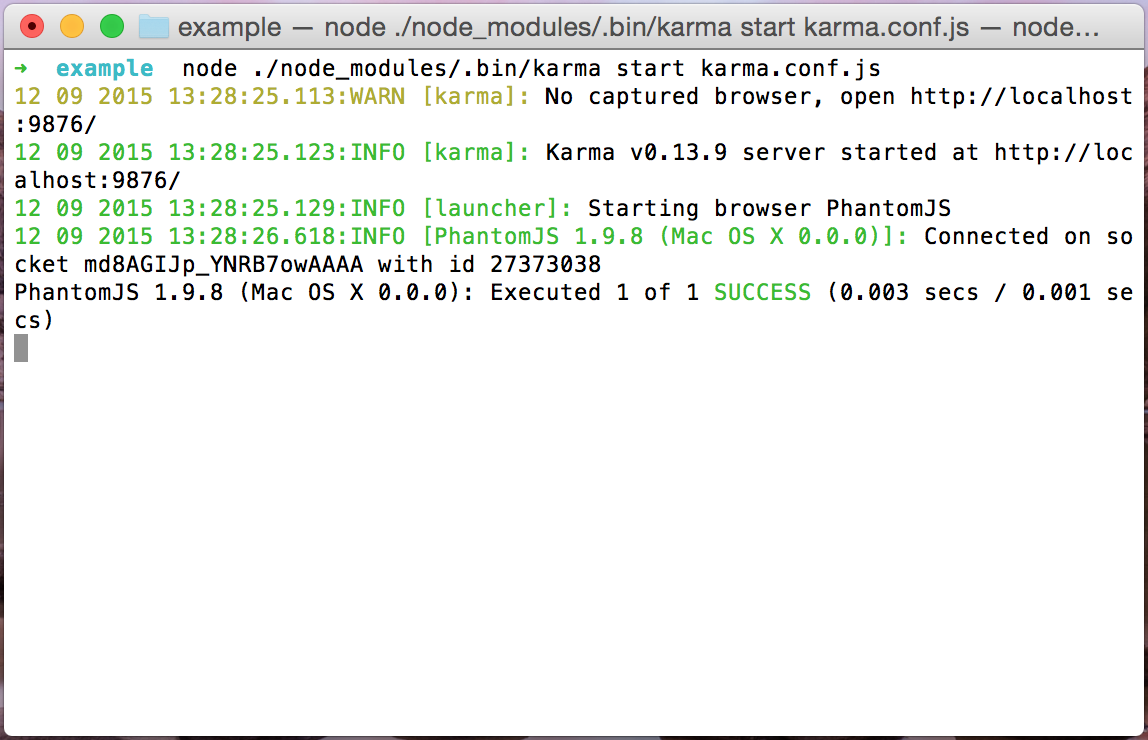
karma

If you have any problems with PhantomJS – maybe you need to install some libs required by it. Check it’s website for more info. Other solution is to try different browser – Chrome, Firefox etc. But this can’t be done via SSH… šŸ™‚

Any problems, suggestions, feel free to comment.

 

SSH + XDebug + PhpStorm

Hi.

CLI debugging. I never did that. Until today. My tests started to fail and I had no idea why.

So that’s my story why I started to debug tests in the CLI via SSH.

Here’s a list of ingredients:

  • PhpStorm,
  • remote SSH (I’m using Vagrant),
  • PHP + XDebug.

First thing what we need to do is to configure the PhpStorm.

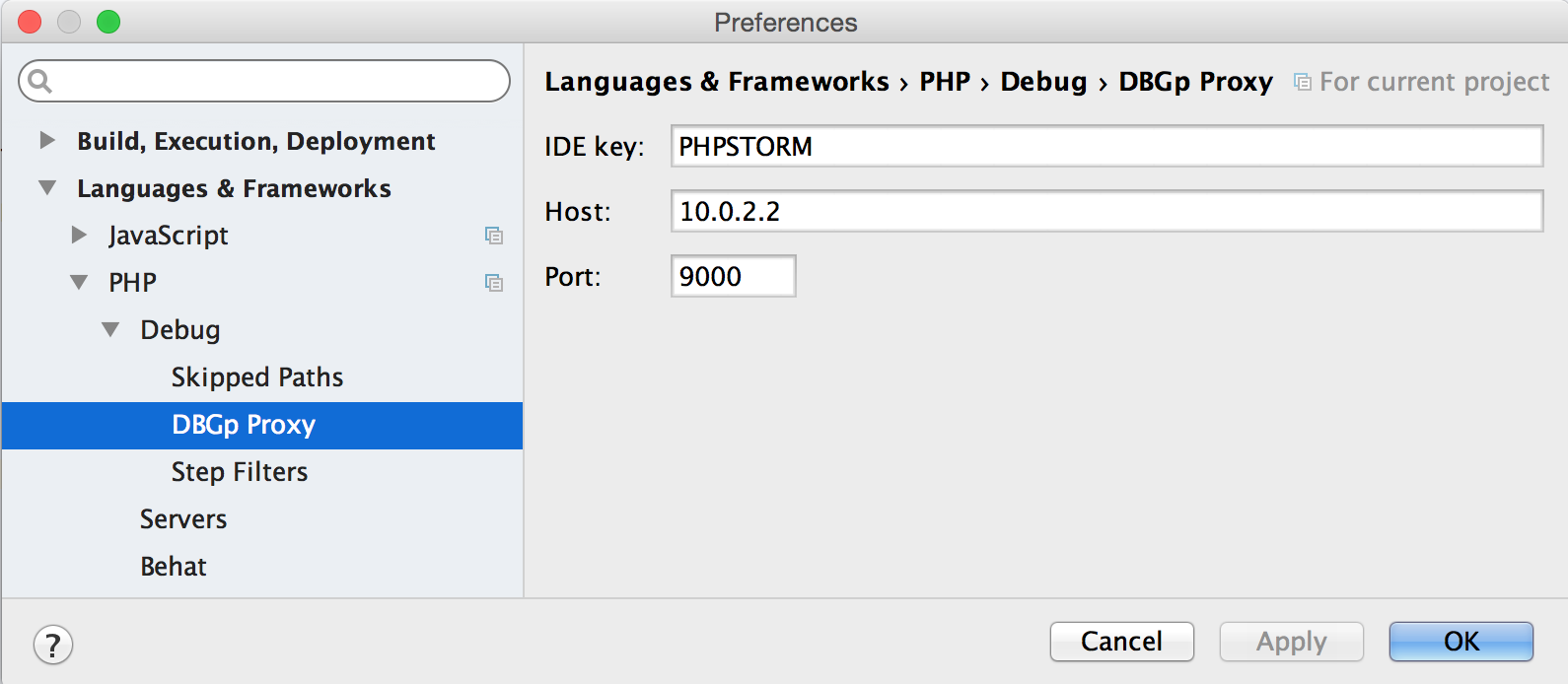
Open your setting and go toĀ Languages & Frameworks >Ā PHP >Ā Debug >Ā DBGp Proxy.

dbgp proxy

  1. Fill the fieldĀ IDE key with key you choose (I choseĀ PHPSTORM and I recommend it).
  2. In theĀ Host field put the IP which is seen by remote (run echoĀ $SSH_CLIENT on the remoteĀ to see it).
  3. DefaultĀ PortĀ is 9000 and you should not change it.

Next thing to configure isĀ Language & Frameworks >Ā PHP >Ā Servers.

server

  1. Put the serverĀ Name.
  2. In theĀ Host field type the IP address, same as on DBGp Proxy.
  3. If you set other Port forĀ DBGp Proxy then change it here.
  4. As we are working onĀ XDebug you don’t have to change the Debugger :).
  5. My remote has different folders structure so I had to set path mapping, probably you will have to do the same.

Ok PhpStorm is ready to go.

Now go toĀ SSH and run this command:

export PHP_IDE_CONFIG="serverName=VAGRANT"
export XDEBUG_CONFIG="remote_host=10.0.2.2 idekey=PHPSTORM remote_connect_back=0"

In the first line put yourĀ ServerĀ Name which you’ve just set. In the second just update the remote_host with theĀ IP address and change theĀ idekey to yours.

The last thing to do is to enable listening for debug connections in theĀ PhpStorm. Just click the button in the top right corner:

enable debug

Ah I forgot, please add someĀ breakpoints! And then you can run your tests / scripts etc.


Enjoy šŸ˜€

DevDocs – because your current docs sucks

I’m pretty sure that you use many documentations, for frameworks, languages and libraries. You have to addĀ many pages to favourites or google for them. But there is a solution for this. And it’s ultraĀ practical.

Just go toĀ http://devdocs.io.

Quick info:

  • multiple docs,
  • stores all data in the browser storage,
  • support fuzzy search, yaay!
  • dark / light theme,
  • ultra quick.

How to use it? Simply choose docs which you want to have in the left sidebar. Then type something in search bar and instantly you will have the resultsĀ šŸ™‚ How cool is that?

So scrap all your favourites and start using DevDocs!

PhpStorm distraction free mode

Today I discovered another cool feature of PhpStorm.

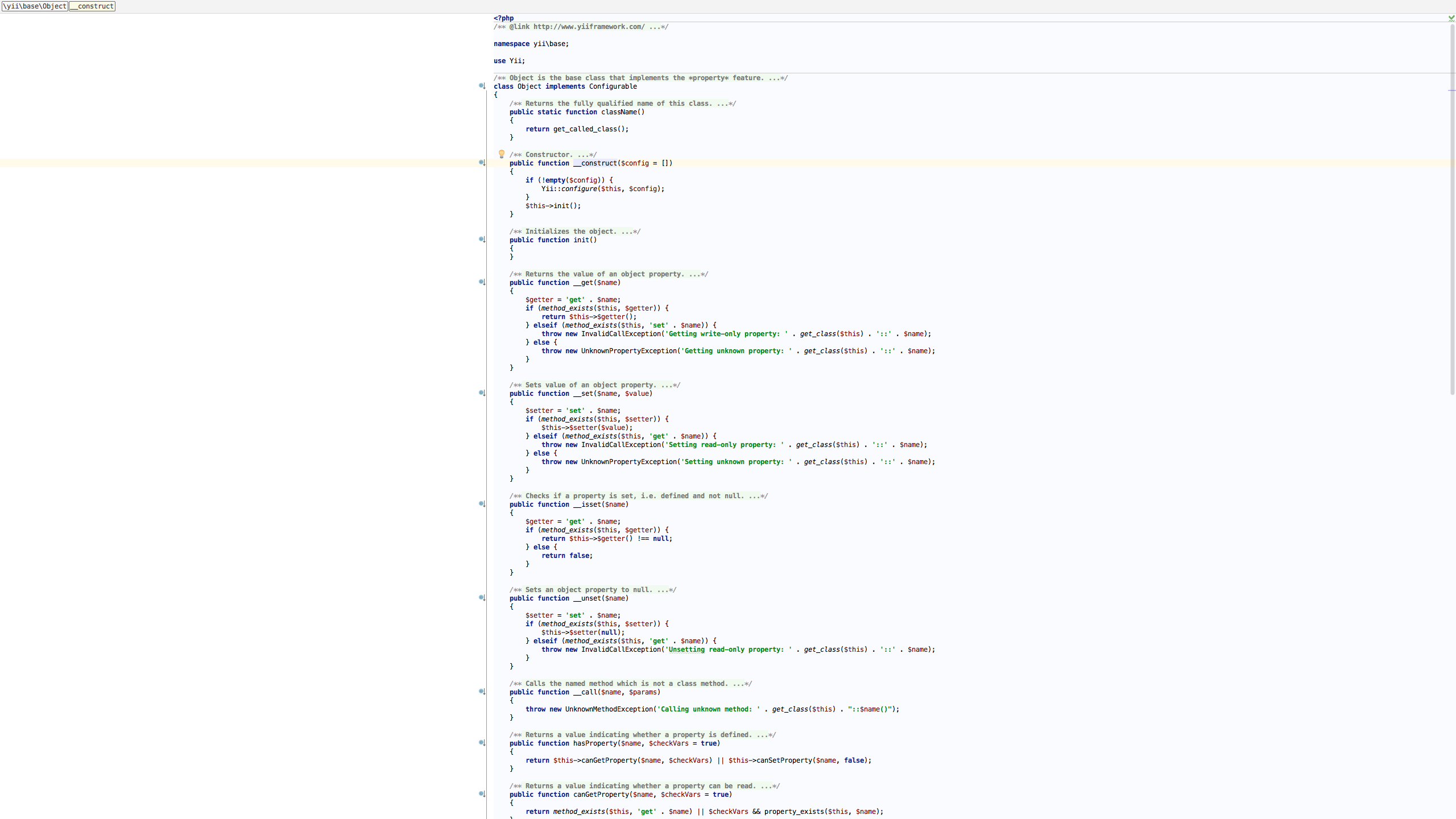
I always open it on full screen of my main display. But it display to much things. I wanted only the code. To focus on it. EnableĀ it viaĀ View > Enter Distraction Free Mode. All tabs, menus, buttons will be gone. The code will be centred. Brilliant šŸ™‚

Here’s screenshot:

PhpStorm distraction free mode

PHP built in server and sessions

Hi!

Today I was struggling with Codeception tests. I’m working on Vagrant machine which has Apache2 installed.

Thing is that to view the page on my host machine I’m utilising Apache. But in the acceptance tests I’mĀ using PHP built in server. To be specificĀ https://github.com/tiger-seo/PhpBuiltinServerĀ is used. It allows to run server as tests are running and destroy it at the end. It also supports many options.

Acceptance tests were broken. The Tester could not login. After some investigation I found that the issue was caused by read/write permissions for session. By default my Vagrant triesĀ to store the session files in theĀ /var/lib/php/session. As I opened my project in Apache earlier the permissions were given for it. There are two options to solve this:

  • change the path for session files,
  • change the permissions for the current path.

I choose first option. To be specific I changed it only for server used by tests. The extension allows to specify custom .ini file. So my fileĀ tests/php.iniĀ look like this:

date.timezone="Europe/London"
session.save_path="/tmp"

Also here’sĀ part of my codeception.yml file:

extensions:
    enabled:
        - Codeception\Extension\PhpBuiltinServer
    config:
        Codeception\Extension\PhpBuiltinServer:
            hostname: localhost
            port: 8000
            documentRoot: .
            phpIni: tests/php.ini
            startDelay: 0

Now session are working in tests šŸ™‚


Cheers!

Bumping Postgres version on Vagrant + CentOS + Chef + postgresql cookbook

Today I was trying to bump the Postgres on my Vagrant to 9.4. The cookbook I’m using:Ā https://supermarket.chef.io/cookbooks/postgresql.

Thing is that the cookbook defines a recipe yum_pgdg_postgresql. So to configure everything just add attributes, here’s example from my cookbook attributesĀ default.rb file:

override['postgresql']['pgdg']['repo_rpm_url']['9.4']['centos']['6']['x86_64'] = 'http://yum.postgresql.org/9.4/redhat/rhel-6-x86_64/pgdg-centos94-9.4-1.noarch.rpm'
override['postgresql']['enable_pgdg_yum'] = true
override['postgresql']['version'] = "9.4"

First line is very important. Current version of cookbookĀ postgresql provides up to 9.2 (source https://github.com/ngs/chef-postgresql/blob/master/attributes/default.rb#L200)Ā version so we have to specify URL to fetch v9.4. As you can see it must specify all required data, postgresql version, os version and os technology used.Ā All available versions forĀ rpm are hereĀ http://yum.postgresql.org.

Second lines ensures that recipeĀ yum_pgdg_postgresql will be included.

The last is obvious, version of postgresql to use.