SSH + XDebug + PhpStorm

Hi.

CLI debugging. I never did that. Until today. My tests started to fail and I had no idea why.

So that’s my story why I started to debug tests in the CLI via SSH.

Here’s a list of ingredients:

  • PhpStorm,
  • remote SSH (I’m using Vagrant),
  • PHP + XDebug.

First thing what we need to do is to configure the PhpStorm.

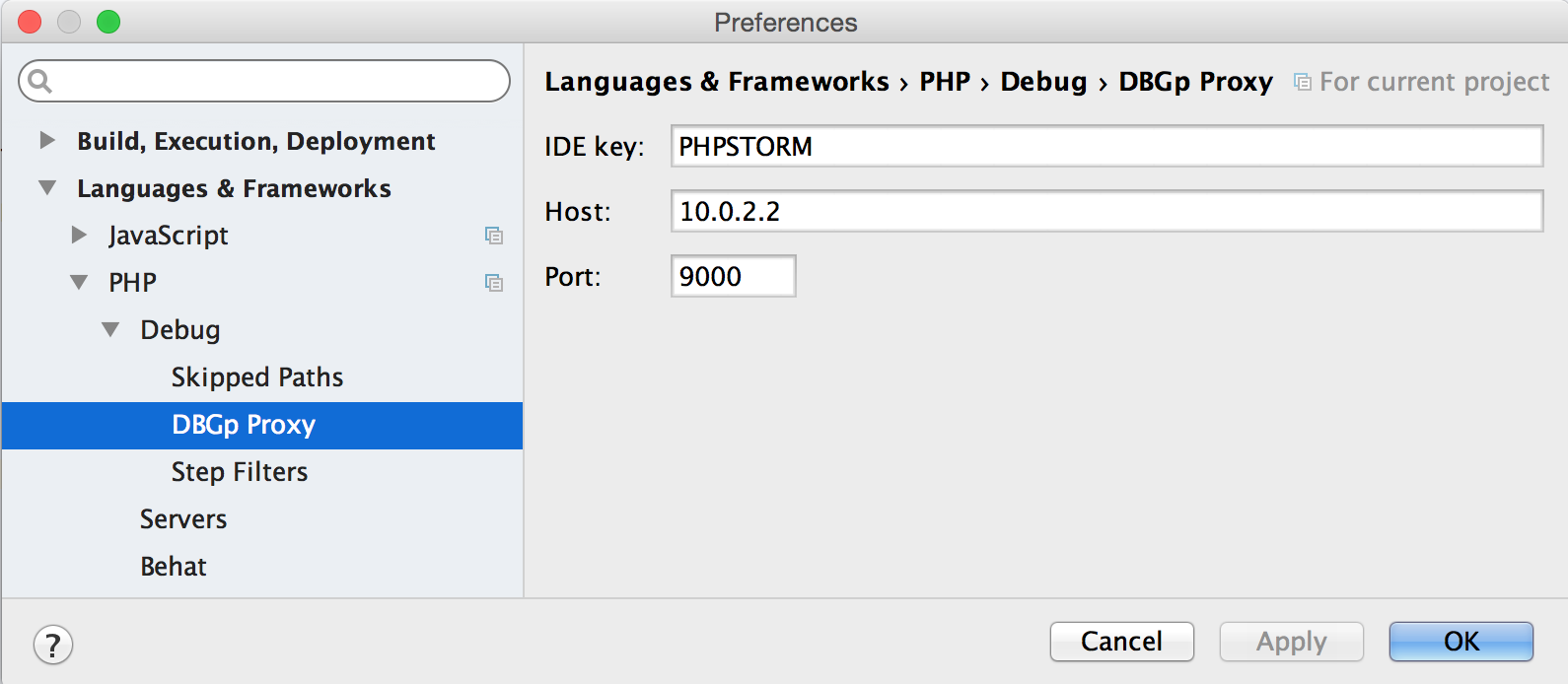
Open your setting and go toĀ Languages & Frameworks >Ā PHP >Ā Debug >Ā DBGp Proxy.

dbgp proxy

  1. Fill the fieldĀ IDE key with key you choose (I choseĀ PHPSTORM and I recommend it).
  2. In theĀ Host field put the IP which is seen by remote (run echoĀ $SSH_CLIENT on the remoteĀ to see it).
  3. DefaultĀ PortĀ is 9000 and you should not change it.

Next thing to configure isĀ Language & Frameworks >Ā PHP >Ā Servers.

server

  1. Put the serverĀ Name.
  2. In theĀ Host field type the IP address, same as on DBGp Proxy.
  3. If you set other Port forĀ DBGp Proxy then change it here.
  4. As we are working onĀ XDebug you don’t have to change the Debugger :).
  5. My remote has different folders structure so I had to set path mapping, probably you will have to do the same.

Ok PhpStorm is ready to go.

Now go toĀ SSH and run this command:

export PHP_IDE_CONFIG="serverName=VAGRANT"
export XDEBUG_CONFIG="remote_host=10.0.2.2 idekey=PHPSTORM remote_connect_back=0"

In the first line put yourĀ ServerĀ Name which you’ve just set. In the second just update the remote_host with theĀ IP address and change theĀ idekey to yours.

The last thing to do is to enable listening for debug connections in theĀ PhpStorm. Just click the button in the top right corner:

enable debug

Ah I forgot, please add someĀ breakpoints! And then you can run your tests / scripts etc.


Enjoy šŸ˜€

DevDocs – because your current docs sucks

I’m pretty sure that you use many documentations, for frameworks, languages and libraries. You have to addĀ many pages to favourites or google for them. But there is a solution for this. And it’s ultraĀ practical.

Just go toĀ http://devdocs.io.

Quick info:

  • multiple docs,
  • stores all data in the browser storage,
  • support fuzzy search, yaay!
  • dark / light theme,
  • ultra quick.

How to use it? Simply choose docs which you want to have in the left sidebar. Then type something in search bar and instantly you will have the resultsĀ šŸ™‚ How cool is that?

So scrap all your favourites and start using DevDocs!

PhpStorm distraction free mode

Today I discovered another cool feature of PhpStorm.

I always open it on full screen of my main display. But it display to much things. I wanted only the code. To focus on it. EnableĀ it viaĀ View > Enter Distraction Free Mode. All tabs, menus, buttons will be gone. The code will be centred. Brilliant šŸ™‚

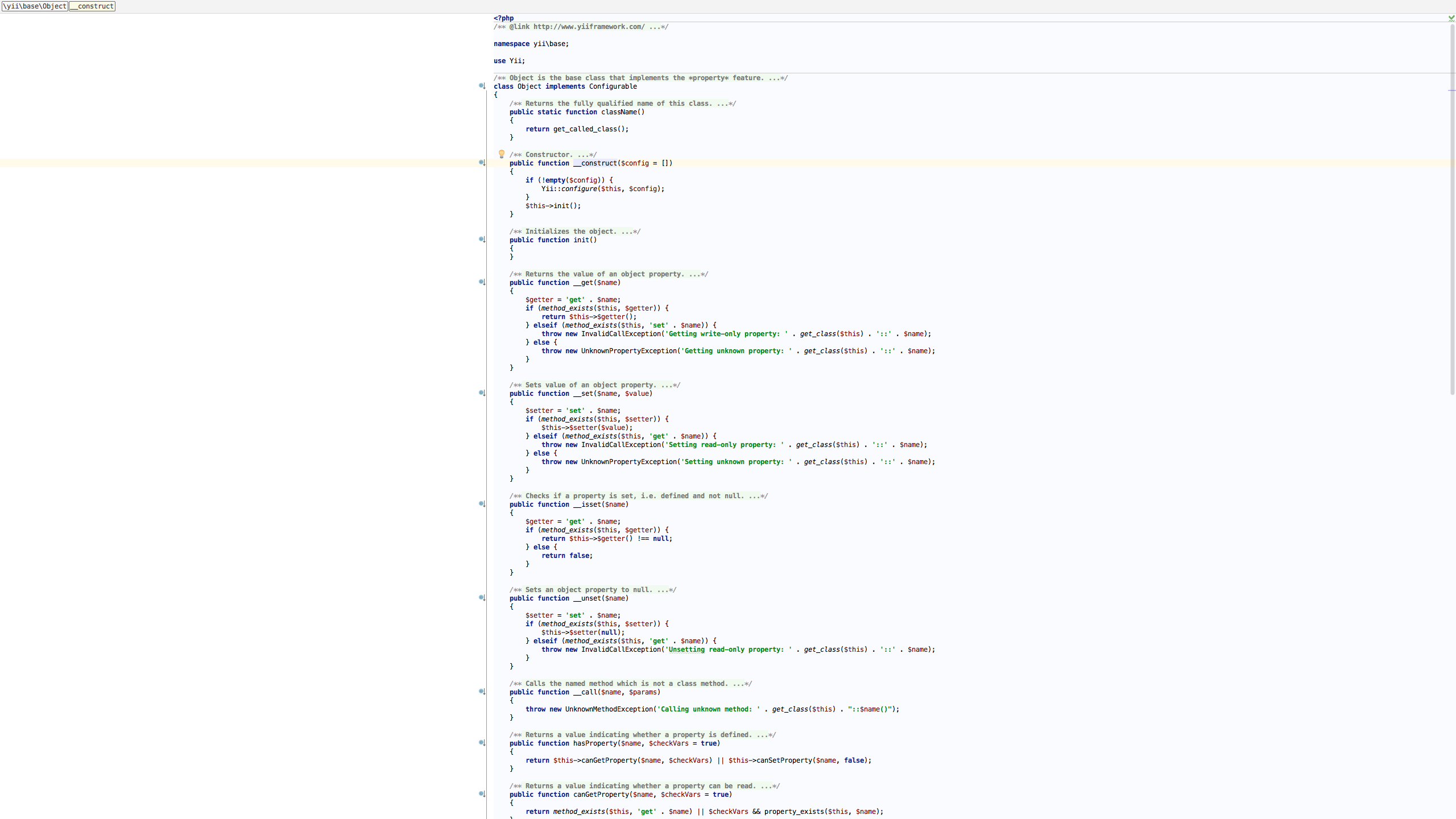
Here’s screenshot:

PhpStorm distraction free mode

PHP built in server and sessions

Hi!

Today I was struggling with Codeception tests. I’m working on Vagrant machine which has Apache2 installed.

Thing is that to view the page on my host machine I’m utilising Apache. But in the acceptance tests I’mĀ using PHP built in server. To be specificĀ https://github.com/tiger-seo/PhpBuiltinServerĀ is used. It allows to run server as tests are running and destroy it at the end. It also supports many options.

Acceptance tests were broken. The Tester could not login. After some investigation I found that the issue was caused by read/write permissions for session. By default my Vagrant triesĀ to store the session files in theĀ /var/lib/php/session. As I opened my project in Apache earlier the permissions were given for it. There are two options to solve this:

  • change the path for session files,
  • change the permissions for the current path.

I choose first option. To be specific I changed it only for server used by tests. The extension allows to specify custom .ini file. So my fileĀ tests/php.iniĀ look like this:

date.timezone="Europe/London"
session.save_path="/tmp"

Also here’sĀ part of my codeception.yml file:

extensions:
    enabled:
        - Codeception\Extension\PhpBuiltinServer
    config:
        Codeception\Extension\PhpBuiltinServer:
            hostname: localhost
            port: 8000
            documentRoot: .
            phpIni: tests/php.ini
            startDelay: 0

Now session are working in tests šŸ™‚


Cheers!

Bumping Postgres version on Vagrant + CentOS + Chef + postgresql cookbook

Today I was trying to bump the Postgres on my Vagrant to 9.4. The cookbook I’m using:Ā https://supermarket.chef.io/cookbooks/postgresql.

Thing is that the cookbook defines a recipe yum_pgdg_postgresql. So to configure everything just add attributes, here’s example from my cookbook attributesĀ default.rb file:

override['postgresql']['pgdg']['repo_rpm_url']['9.4']['centos']['6']['x86_64'] = 'http://yum.postgresql.org/9.4/redhat/rhel-6-x86_64/pgdg-centos94-9.4-1.noarch.rpm'
override['postgresql']['enable_pgdg_yum'] = true
override['postgresql']['version'] = "9.4"

First line is very important. Current version of cookbookĀ postgresql provides up to 9.2 (source https://github.com/ngs/chef-postgresql/blob/master/attributes/default.rb#L200)Ā version so we have to specify URL to fetch v9.4. As you can see it must specify all required data, postgresql version, os version and os technology used.Ā All available versions forĀ rpm are hereĀ http://yum.postgresql.org.

Second lines ensures that recipeĀ yum_pgdg_postgresql will be included.

The last is obvious, version of postgresql to use.

Vagrant and NFS – problems?

Hi.

Recently I heard that using NFS is much faster than default shared folders in the Vagrant with VirtualBox. After some research I started to upgrade my Vagrantfile.Ā Here is snippet how to make you shared partition NFS type:

config.vm.synced_folder ".", "/my-project", type: "nfs"

And that’s all!

But.

Yesterday I had a problem. When I tried to up the vagrant it failed. My recent changes (I changed the username on my OS X) broke something in the NFS configuration. Quick search and found the solution. Seems that I had wrong entries in the file /etc/exports.Ā Here is bash fix:

sudo rm /etc/exports
sudo touch /etc/exports

After that all works like a charm šŸ™‚

The machine started to work very fast. It should be set as a default sharing method…


PS. If you are working on the Windows, try a pluginĀ https://github.com/winnfsd/vagrant-winnfsd


Cheers, Damian.